Sounds like the video card could be on its way out. It looks like the 7100 comes with a dedicated video card, so what I would do is remove the video card from the computer, take the black plug off that covers the onboard DVI connector, plug the monitor to that DVI connector, turn on the computer and see if you get a signal. The onboard video card is disabled until your remove the dedicated video card.
If the processor is overheating, typically the whole computer should power off. An overheating processor is much more common in an older laptop than a desktop.
To remove the video card follow these steps.
- Move your PC to an open desk or the kitchen table. Preferable away from carpet.
- Take off the side panel on the left side of the tower.
- Touch the computer case at almost all times to prevent a static discharge on the components.
- Now the tricky part, I've never worked on a Dell like this, but here's a picture of the inside
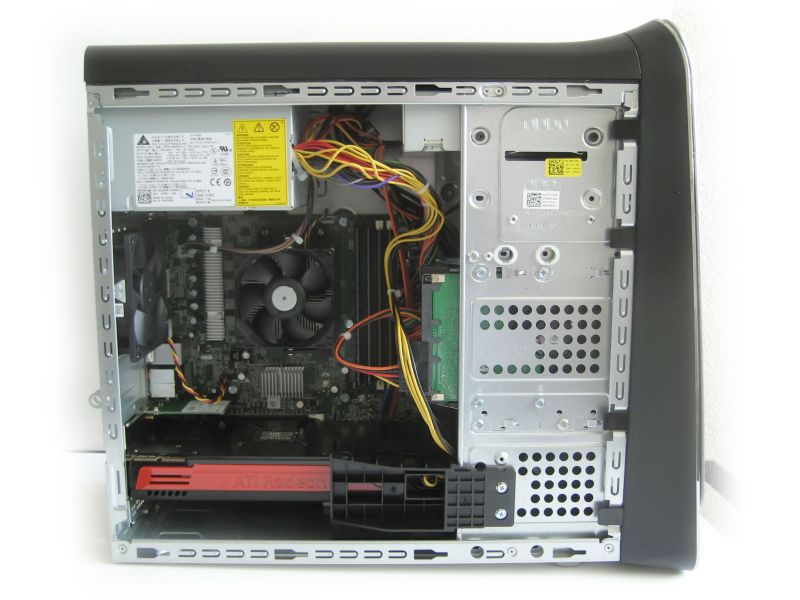
It looks like there's two screws holding the black plastic support on the right side of the video card (the video card says ATI Radeon on it), you'll probably have to remove those. Now, it looks like there's a metal bracket that sits above the expansion slots on the back of the tower. You'll have to figure out how to remove that. There should be a single (maybe two) screw(s) underneath that to hold the video card in place. Remove the screw(s).
- There should be a little white lever lock on the end of the PCI-Express slot, this is where the video card connects to the motherboard. You can see that in this picture, the long black slot with a little white lever lock on the end.
http://www.partsguy.net/img-gk1k2.jpg
You should be able to press down on that lever lock to release the video card.
- Now gently pull the video card out and disconnect the supplement power cables that are plugged into the one end of the video card. Place the card on the table, be careful not to touch the golden contacts on the bottom of the card. Also be sure to touch the computer case before you pick up the card again.
- Connect your monitor to the onboard DVI connector (long white connector) on the motherboard, plug in the keyboard, mouse and finally power. Power it on and see if you get a video signal. If you don't, we know the issue lies somewhere else. If you do get a signal, the issue is the video card.